Build: Data
After planning is complete, define and build the data model. Create one or more tables with fields, load the table with demo data, and verify access controls to the data.
Create an Application
Create or open an application record.
DEVELOPER TIP: The application scope and table name are sometimes referred to as the internal names for these objects and cannot be changed once they are created. However, the application name and table label can be changed. Application users see the internal names in the URL only. If possible, internal names should always be consistent with what the user sees.
Build the Data Model
Create tables and fields on the tables to support the application’s data model.
NOTE: ServiceNow automatically adds six fields to each new table. The new fields contain auto-populated information about the table.
| Field Name | Database Name | Description |
|---|---|---|
| Created by | sys_created_by | User who created the record. |
| Created | sys_created_on | Date/time when record was created. |
| Updated by | sys_updated_by | User who last updated the record. |
| Sys ID | sys_id | Unique identifier for the record. It is unique throughout the instance. |
| Updates | sys_mod_count | Numeric field that counts the number of updates to the record since record creation. |
New tables can extend an existing table to inherit fields and functionality from the table being extended. Add to and modify the components of the extended table. The most commonly extended ServiceNow table is the task table.
Add fields to the table to support the data model required by the application. ServiceNow has many different field types with built-in validation. Select the field type that best fits the field’s data.
NOTE: String (plain text) fields are the easiest to configure. However, because users can enter anything, string fields can result in bad and inconsistent data that is difficult to use.
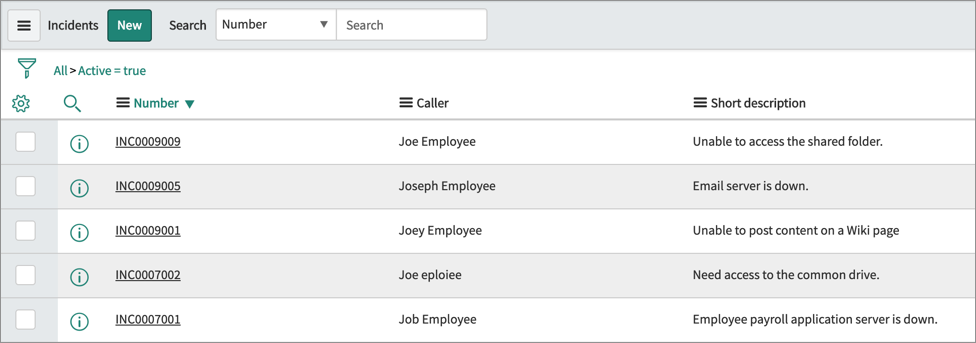
In the example, a string field type is used for a user's name. Notice the Caller field is different for each Incident record, but the caller may be the same person. Do not use a string field type for a user's name in tables.
Instead, use a reference field type that references the User table instead of a String field. Users then need to select a single consistent record in the Caller field:
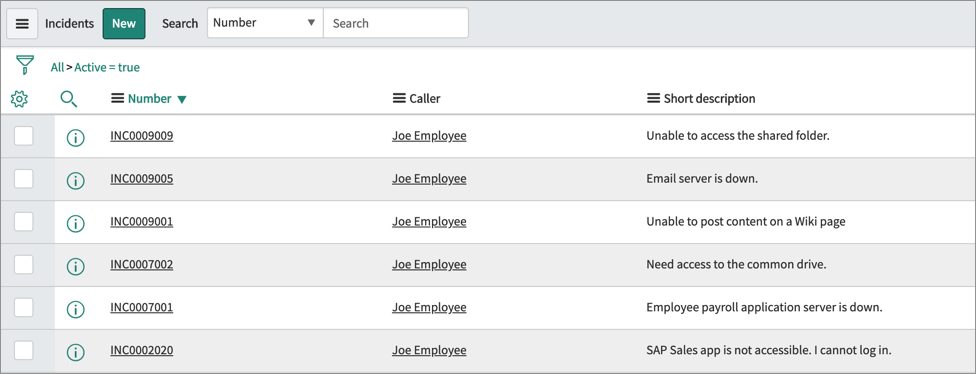
Reference fields ensure consistent data by normalizing date in another table in ServiceNow. ServiceNow has over 2000 baseline tables available to reference. The Appendix lists some commonly used tables for building an app.
While a reference field can normalize data, other fields can be used for specific types of data. The ServiceNow Documentation site has the complete list of Field types. Some common field types:
| Field Type | Description |
|---|---|
| Integer | Stores number values and can be used in calculations. |
| Currency | Holds a currency value and will show values in the currency of the logged in user. |
| Phone number | Includes validation and formatting for E164-compliant phone numbers. |
| Reference | Displays a record from another table and helps to normalize data. |
| Choice | Displays a select box with a predefined list of choices. Choice lists should include fewer than ten items. |
| Date | Stores a date value selected with a date picker. Use Date if you do not need a specific time. |
| Date/Time | Stores date and time values selected with a date and time picker. Use Date/Time to compare specific times or if the exact time is important. |
| String | Holds freeform text. Use String if no other field type matches the values stored in the field. |
NOTE: Field types should not be changed after a field is created.
Choice Lists vs Reference Fields
Choice lists and Reference fields both offer users a way to choose a value from a list. Choice lists are name/value pairs. Users select from the names and the field stores the value of the selected choice. Scripts use the value. Add and remove name/value pairs from the choices to manage the list of options.
Reference fields point to a table. Manage choices in the table. The value stored in the reference field is the sys_id of the referenced record.
Choice lists do not require a reference table and are easier to configure than reference fields. Use Choice lists when the field has ten or fewer options and the options will not change. Consider using a reference field and table when:
When using reference fields, review the tables available in the instance to reference before creating a table. If creating a new table, check the list of exempt tables in section 2 of the Custom Table Guide. If appropriate, extend the new table from one of these.
DEVELOPER TIP: Before creating new fields on an extended table, check for an existing field inherited from the base table that has a similar purpose. If a field is found, override the extended table's label.
Secure Data
Data security is one of the most important and overlooked aspects of creating an application. ServiceNow automatically configures access control for a new or selected role during the table creation process. Only users with the role can access the table to read, create, write, and delete.
Use access control rules to configure table and column-level security in the Now Platform. To properly configure access to an application, developers should understand how access controls work and the order in which access controls are evaluated. Apply multiple access controls that together make an Access Control List (ACL).
Self-Paced Training: Securing Applications
Documentation: Access control list rules
When considering security:
Beginning with the Orlando Platform Subscription model, customers are charged by how many tables a user can access, regardless of whether the user does access the table. Configure ACLs to restrict access to a table to ensure that only the users that need access to a table can access the table.
DEVELOPER TIP: Consider making any auto-populated fields read only. If the system is populating the data, a user should not be able to.
Alternately, secure data on the Now Platform with before-query Business Rules. Before-query Business Rules run before the database query and are limited to controlling read access to a record. Only use before-query Business Rules when necessary. Some considerations when deciding to use Access Controls or before-query Business Rules:
Review the user query Business Rule on the User [sys_user] table for reference.
NOTE: Before-query Business Rules do not take the place of ACLs. Denying users access to a table via before-query Business Rule will still count the table against the subscription model. Use Access Controls to prevent the table from being counted for the users in the Platform Subscription model.
Review the ServiceNow Security Best Practices Guide [requires login] on the HI portal (https://hi.service-now.com) for additional security recommendations.
Encryption
The Now Platform also provides various encryption solutions at the application tier, database tier, and hardware tier. Learn more in the Data Encryption Whitepaper.
DEVELOPER TIP: Set up security before configuring any interfaces or business logic. Since security affects the data available to interfaces and business logic, waiting until the end of the application build process may cause rework and issues.
Manage Data
With the data model (tables and fields) created and security set up, add data into the application’s table(s).
Import Sets
To populate tables in ServiceNow from an external platform, use import sets and transform maps. To retrieve data from an external source on a regular basis, use a scheduled import.
Self-Paced Training: Importing Data into ServiceNow
Guidelines for Import Set Performance:
Inbound Integrations
In addition to Import Sets, ServiceNow includes APIs to accept data from external platforms.
To push data directly into an application table from another system, use Web Service Import Sets instead of writing directly to application tables using the REST Table API or SOAP APIs.
To handle data transactions that are more complex than writing data to a table, such as sending an attachment or ordering a catalog item, review the available APIs to see if one exists that supports the required logic.
Use a Scripted REST API or Scripted SOAP Web Service to build REST or SOAP endpoints, respectively. Scripted REST API and Scripted SOAP Web Service endpoints can execute ServiceNow server-side code when the endpoint is consumed by an external system.
Self-Paced Training: REST Integrations